
Get Direct Access to Your Private Folder (Tutorial)
Last updated 2026-06-01At a Glance
In your private folder you can store outputs or intermediates, move files between IDEs within the same account, or upload from your laptop using supported tools like gsutil or gcloud storage. To make it easier to find the name of your cloud storage bucket when uploading to a private folder from a laptop, HISE displays that information in the UI, using the new Private Folders link in the main menu (click [Your email address] > Private Folders). You can then copy the bucket name needed for the file path). You can also find the path programmatically by running df -h in your terminal.
For more information about the private folder associated with your account, click your email address in HISE, and choose Private Folders from the drop-down menu. The Private Folders page gives you easy access to the name of your cloud storage bucket, as shown in the image below.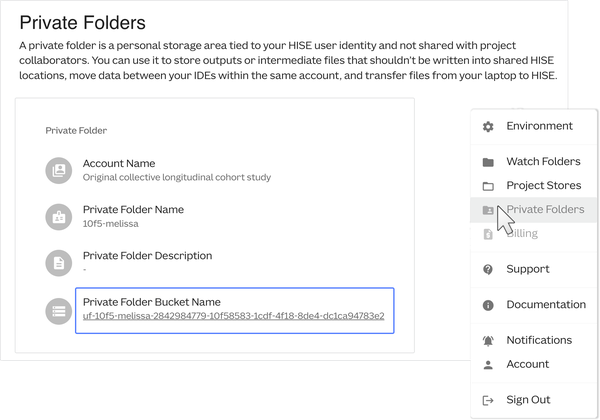
When to Use This Feature
Use your private folder in the following circumstances:
Store outputs or intermediates that shouldn’t be written into HISE, including data you might move between IDEs in the same account.
Upload files from your laptop into HISE by copying them into
/privatewith supported tools such asgsutil.
Retain long-term analysis data that you don’t want to place in shared project storage.
NOTES
When storing or copying data into a private folder, be sure to observe the access restrictions that apply to the selected files and data sets.
To authenticate with Google for the first time on Mac or Windows, you must run the following command in your terminal to create local credentials:
gcloud auth application-default loginBe cautious when uploading using the
gsutilor FUSE workflow because it may lack transparency and could compromise the reproducibility of your work. Use this workflow only if it's appropriate given the type of files you're storing, the stage of your research, and similar considerations.Data stored in
/privatecounts toward your team's cloud billing quota, which includes storage and active computing costs. When you no longer need the data in a private folder (for example, after zipping it and uploading the contents into HISE), work with your team to remove those files so they no longer incur costs.
Mac users: Copy folders to your private folder bucket
On your laptop, install the Google Cloud CLI (Tutorial) , which includes the
gsutilcommand‑line tool. If you already have Google credentials set in your system, use those instead of the gcloud auth login.Copy or drag and drop files from your laptop into your private folder. To find your bucket name, check the Private Folders detail page in HISE, or run
df -hin your terminal.
A. Use this copy command to upload a local file to your bucket:gsutil cp /path/to/local/file_to_copy gs://ORG-billing-bucket/path/to/file_to_copyExample:
gsutil cp /Users/avery.hise/file.tar.gz gs://uf-10f5-avery-2842984779-10f58583-1cdf-4f18-8de4-dc1ca94783f4/file.tar.gz
B. Use this copy command to copy a collaborator's shared bucket:gsutil cp gs://OTHER_BUCKET/path/to/file_to_copy gs://ORG-billing-bucket/path/to/file_to_copy
C. Use this copy command to upload a local directory to your bucket:gsutil cp -r /path/to/local/directory_to_copy gs://ORG-billing-bucket/path/to/directory_to_copyExample:
gsutil cp -r /Users/avery.hise/directory_to_copy gs://uf-10f5-avery-2842984779-10f58583-1cdf-4f18-8de4-dc1ca94783f4/directory_to_copy
D. Use this command to sync a local directory to your bucket.gsutil rsync -r /path/to/local/directory_to_copy gs://ORG-billing-bucket/path/to/directory_to_copy
Example:gsutil rsync -r /Users/avery.hise/directory_to_copy gs://uf-10f5-avery-2842984779-10f58583-1cdf-4f18-8de4-dc1ca94783f4/directory_to_copy
E. If appropriate for your team's workflow, use FUSE to mount a cloud storage bucket , and treat this location as your HISE laptop workspace. Make sure Go and Git are installed, and then follow these steps:
i. Install macFUSE:brew install --cask macfuse
ii. Install Cloud Storage FUSE:go install github.com/googlecloudplatform/gcsfuse@master
iii. Add~/go/binto your shell profile, and then reload your profile:export PATH=$PATH:$HOME/go/bin
iv. Create a local mount directory:mkdir ~/mybucket
v. Authenticate with Google (for example,gcloud auth login) or by settingGOOGLE_APPLICATION_CREDENTIALS.
vi. Mount your bucket:gcsfuse --implicit-dirs BUCKETNAME ~/mybucket
vii. Use youruserFolder bucketNameasBUCKET_NAME:uf-my-bucket-1835804567-37010401-0974-4419-a399-09d4250294ab
viii. If FUSE is blocked, allow it in Settings > Privacy & Security. If needed, follow the prompts to enable third-party system extensions. For details, see the macFUSE Troubleshooting Guide .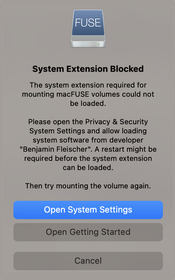
Windows users: Mount your private folder bucket
Install Windows subsystem for Linux (WSL), and restart your machine.
How to Install Linux on Windows with WSLExecute the following steps in the WSL terminal:
A. Installgcsfusefrom the WSL terminal:
Install or Upgrade Cloud Storage Fuse
B. Create a local mount directory:mkdir ~/mybucket
C. Authenticate with Google (for first-time authentication, see the NOTE above):gcloud auth login
D. Mount your bucket:gcsfuse --implicit-dirs BUCKETNAME ~/mybucket
E. Use youruserFolder bucketNameasBUCKET_NAME:uf-my-bucket-1835804567-37010401-0974-4419-a399-09d4250294ab
F. From the WSL terminal, access your local Windows files from the/mntdirectory:
i. To view your Documents folder:mnt/c/Users/<windows_username>/Documents
ii. To copy a file from your Windows machine to yourgcsfuse–mounted folder:cp /mnt/c/Users/<windows_username>/Documents/test.txt ~/mybucket
Related Resources
Create Your First HISE IDE (Tutorial)