Switch Your Account or Projects (Tutorial)
Last updated 2026-06-29At a Glance
With the quick-switch list in the main HISE navigation menu, you can change your account or workspace in a single click, making it easy to find the right data, IDEs, billing info, and other results without interrupting your workflow. Just click your email address in the upper-right corner to select from your Favorited HISE Accounts list in the drop-down menu.
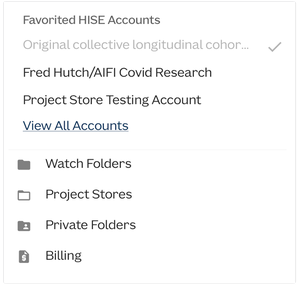
Your current account and project selections determine which data, tools, and research initiatives you can see and work with in HISE, and now you can adjust those selections quickly and easily. The Switch HISE Account dashboard puts project selection all in one place. For instructions, see the tabbed steps below. If you have questions or need help, contact Support.
NOTE
Populate your quick-switch list by clicking [Your email address] > View All Accounts and marking your account favorites with stars.
When to Use This Feature
Use this feature when you want to change the account or projects that determine what you can see and do in HISE. Follow the steps in this tutorial to make sure your selections are the ones you want.
Choose the right account to make sure you get the results you expect in Advanced Search, Data Apps, IDEs, AI/ML workflows, billing, and other areas.
Use the quick-switch accounts list if you have more than one HISE account and need to work with data or tools in a different account.
Visit your dashboard to adjust the projects you’re working in so you can find the right data in Advanced Search, run AI/ML jobs, or open the correct IDE instances.
Instructions
Quick-switch your account
View your Favorited HISE Accounts quick-switch list in the drop-down menu just below your email address in HISE. Here's an example in which the user has marked two favorites.
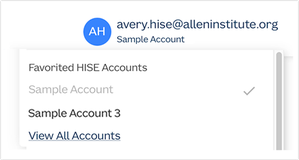
A. One account favorite, Sample Account, is selected as the current account ( ).B. The other favorite account, Sample Account 3, appears in the Favorited HISE Accounts list in this example. To switch to it, click the account name in the list. That HISE account context, including files and billing information, becomes available to you immediately.
NOTE
To learn how to populate your Favorited HISE Accounts list, see the second tab in this tutorial. You must also choose the right projects within the selected account. To review project details, click View All Accounts > Select Projects. For more instructions, see the third tab on this page.
Mark favorites and view details
Your Favorited HISE Accounts quick-switch list is initially unpopulated. To populate it, click [Your email address] > View All Accounts.
On the Switch HISE Account page, select or remain on the default Accounts tab.
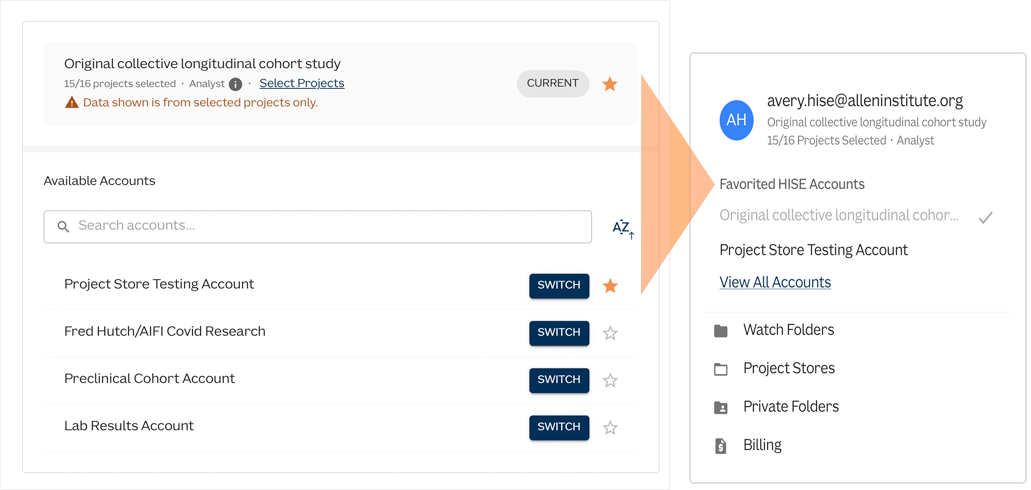
A. In the top pane, view your current account.
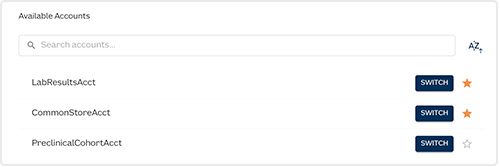
B. Click the star next to an account name to mark that account as a favorite and move it to the Favorited HISE Accounts dashboard. Note that the two accounts marked as favorites in the dashboard also appear on the quick-switch accounts list in the main menu.
C. In the Available Accounts pane, view the other accounts you have access to. Click SWITCH to move to a given account.Toggle to the Workspaces tab, where you can mark favorite workspaces and see workspace details the same way. Favorite workspaces are also added to your Favorited HISE Accounts list in the main menu.
Switch projects
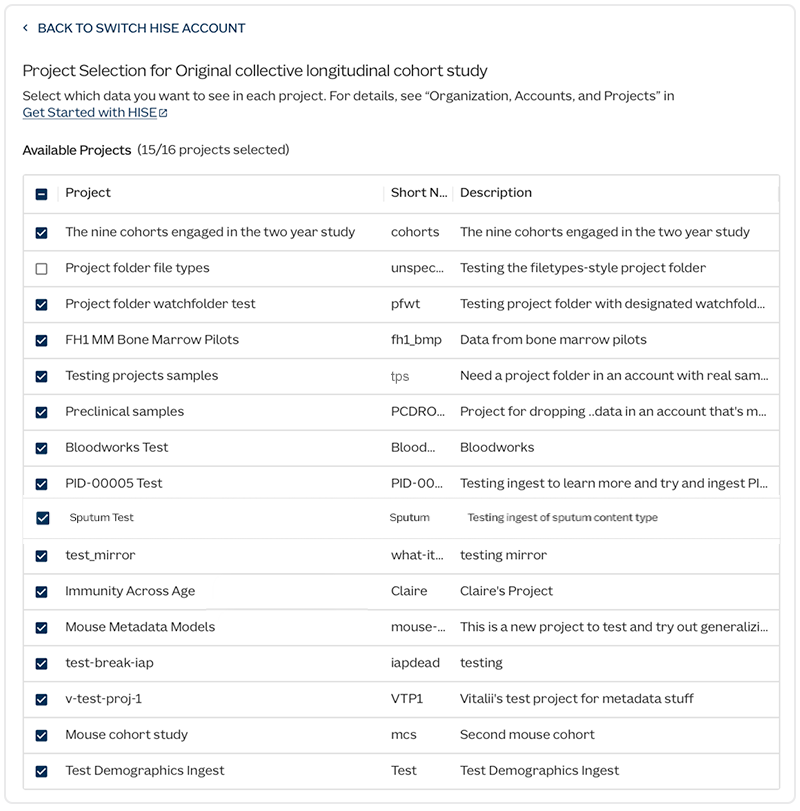
To see available projects for a given account, select that account. Then, from the Switch HISE Account page, click Select Projects.

On the Available Projects page, select the checkbox next to each project whose data you want to access (for example, in Advanced Search results). To select or deselect all projects in the account, use the checkbox to the left of the Project field. No confirmation is needed—your selections are saved automatically.