
Use Advanced Filters for Complex Search Queries (Tutorial)
Last updated 2026-07-14At a Glance
Use this tutorial to answer precise research questions in HISE. It shows you how to move beyond quick, broad searches (for example, project plus file type, or a known file name) to layer on specific metadata filters that pinpoint the files, samples, cohorts, or public data you need. You can also run multiple queries, group the results of each query, and display them in a visualization tool to compare attributes such as cohorts, visits, or pipelines.
NOTE
The results window for files searches now includes a Sample References column. This column lets you see how many samples in a file match your current search filters, so you can assess a file's relevance before deciding whether to include it in your results. For details, see Step 3 below.
For instructions on performing simple searches, see Use Advanced Search for Basic Queries (Tutorial). If you have questions or need help, contact Support.
When to Use This Feature
The redesigned HISE Advanced Search lets you use an intuitive, shopping‑style interface to find the data you need for your research. You define the search scope, pick a category (files, samples, EMR, or public files), and apply filters that behave like selections in an online store. As you narrow your results, more granular, context‑specific filters appear:
Refine your data set by attributes such as batch or panel ID, visit, and cohort
Limit results to a particular disease state or visit window
Pull files tied to a known subject, specimen, or file ID
Reproduce an analysis data set
Instructions
Set up search
Navigate to HISE, and use your organizational email address to sign in .
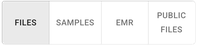
Choose a general search type: FILES, SAMPLES, EMR, or PUBLIC FILES.
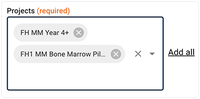
Choose one or more projects.
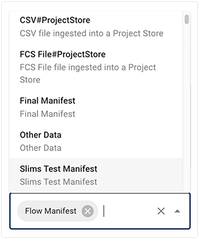
(FILES searches only.) Choose one or more file types.
Apply filters
1. To apply filters to your search, choose among the following categories: Sample Metadata, File Metadata, Subject Metadata, User Tags, Tissue File Metadata, Custom Metadata, Survey Metadata, EMR Data, EMR Metadata, and Lab Metadata.
A. Sample Metadata filter group. This filter group pinpoints specimen-level attributes for each sample. Use it to find samples with specific processing histories or biological characteristics.
| Sample Metadata Filter Group | |
|---|---|---|
Batch ID | Unique pipeline batch identifier for processed samples. | |
Panel ID | Assay or marker panel configuration identifier. | |
Specimen Type | High-level specimen category (for example, "Blood"). | |
Specimen Source | Anatomical or biological origin of the specimen. | |
Specimen Tissue Subtype | More specific tissue classification within the source. | |
Visit Name | Study-defined label for the collection event. | |
Visit Details | Additional scheduling or context notes about the visit. | |
Disease State | Clinical or experimental disease condition at collection (for example, "Healthy control."). | |
Sample Kit GUID | Globally unique ID of the physical collection kit. | |
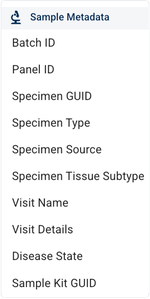
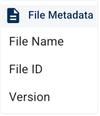
B. File Metadata filter group. This filter group represents properties of stored files. Use it to find results based on how files were generated, stored, or labeled.
| File Metadata Filter Group | |
|---|---|---|
Filter | Description | |
File Name | Human-readable name of the stored file. | |
File ID | Unique system identifier for the file record. | |
File Version | Specific revision number of the file content. | |
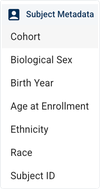
C. Subject Metadata filter group. This filter group targets subject-level information. Use it to find data associated with subjects who share specific characteristics.
| Subject Metadata filter group | |
|---|---|---|
Filter | Description | |
Cohort | Study-defined group to which the subject is assigned. | |
Biological Sex | Subject's sex assigned at birth. | |
Birth Year | Calendar year in which the subject was born. | |
Age at Enrollment | Subject’s age when first enrolled in the study. | |
Ethnicity | Subject's self-reported ethnic background. | |
Race | Subject's self-identified racial category. | |
Subject ID | Subject's study-specific identifier. | |
D. User Tags filter group. This filter group maps to user-defined labels attached to files or records, such as custom names, versions, groups, or origins. Use them to quickly find or regroup data according to a project-specific tagging scheme.
User Tags filter group | |
Filter | Description |
Details | Freeform notes about the user tag. |
Name | User-defined tag name or label. |
Version | Version identifier for this specific tag definition. |
Group | User-defined grouping or cohort label. |
Origin | Source or provenance of the tagged data. |
Other | Miscellaneous user-defined tag not elsewhere covered. |
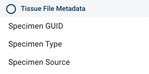
E. Tissue File Metadata filter group. This filter lets you narrow results to tissue files from specific specimens by ID, type, and source tissue.
| Tissue File Metadata | |
|---|---|---|
Specimen GUID | Globally unique identifier (GUID) used to track and reference a specimen unambiguously across HISE and external systems. | |
Specimen Type | The kind of specimen collected (for example, blood, tissue, saliva, or other biological material). | |
Specimen Source | The biological source the specimen was collected from, such as the organism, tissue, organ, or body site of origin. | |
F. Custom Metadata filter group. This filter group covers project-specific fields that extend the standard metadata model, such as additional diagnoses, external IDs, or study-specific flags. Use these filters to search fields not covered by the standard sample, file, or subject filters.
NOTE
The Custom Metadata filter group appears only when your current query context includes data that requires custom fields. When this filter does appear, it might not include all three options listed in the accompanying table. For example, as shown in the image to the left of the table, the query produced only one custom filter option.
| Custom Metadata filter group | |
|---|---|---|
Filter | Description | |
Diagnosis | Documented clinical diagnosis for the subject at collection. | |
limsParentContentID | Identifier linking this record to its parent LIMS entry. | |
Subject Guid | Globally unique identifier for the study subject. | |

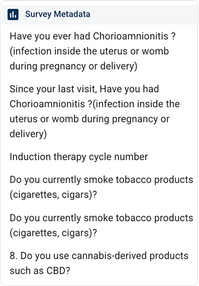
G. Survey Metadata filter group. Selections in the Survey Metadata filter group vary widely. They describe the respondents who participated in a survey and the survey context, such as when and how the data collection occurred and what questions were asked. This filter does not include survey responses.
H. EMR Data filter group. This highly variable filter group consists of dynamically generated, structured clinical fields from the EMRs associated with your selected projects. Examples include specific diagnoses, lab values, and treatment attributes. These filters are used to find data associated with specific subjects or samples.
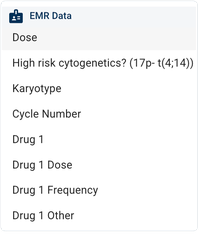
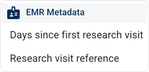
I. EMR Metadata filter group. This group captures various descriptive fields, such as file IDs, dates, and linkage keys, associated with EMR records. Use this filter group to find data based on how or when it was ingested or categorized.
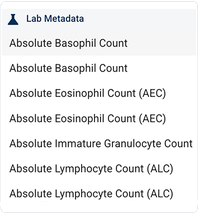
J. Lab Metadata filter group. This group narrows your results based on laboratory measurements and derived lab values, such as absolute basophil, eosinophil, or lymphocyte counts. These filters help you find records for subjects or samples with specific lab profiles or ranges that matter for your analysis.
Choose operator and value
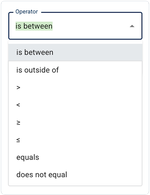
Cick the arrow to the right of the Operator field, and select from the drop-down list. Operators are context specific, so the operators available to you depend on the filter you select.
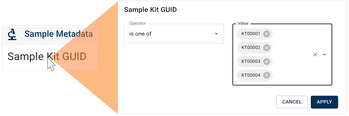
A. The is one of and is none of operators allow multiple selections. 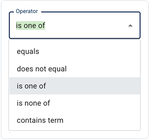
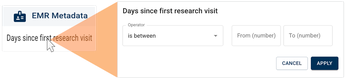
B. Some operators, such as is between, let you specify a range of values (between x and y).
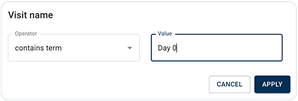
2. Click the arrow to the right of the Value field and select from the list, or type directly into the Value field if one is provided.
3. Select the checkbox next to each result you want to include in your data set, or click SELECT ALL ITEMS. The number of rows selected is displayed in the lower-right corner.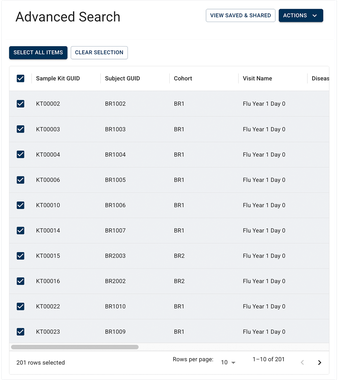
4. To keep the results that appear, click APPLY. To return to filter selection, click CANCEL. 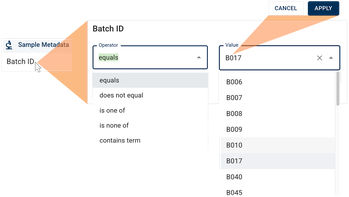
The results shown in the results window update instantly. The available options are limited by your earlier project, file type, and filter selections. If the Value field returns Empty , your search yielded no results. Adjust your project selection, file type, or filters until values appear.
NOTE
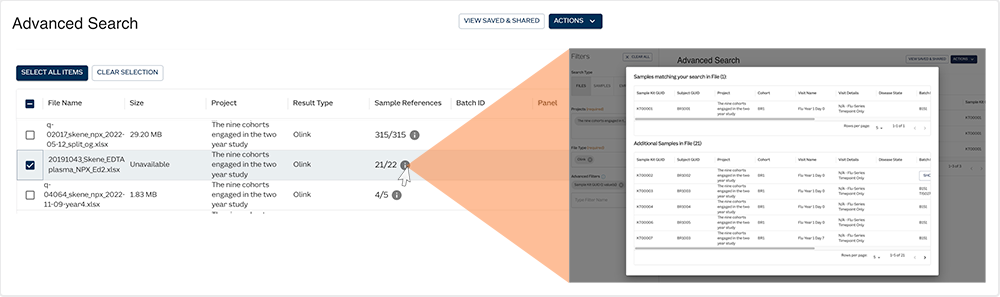
When you perform a FILES search, the results window now includes a Sample References column. This column shows how many samples in each file match your current filters. This number is expressed as X / Y (X = number of samples matching your filters, Y = total number of samples in the file). In the image below, for example, 21 of 22 samples match. The X value updates instantly as you adjust operators and values.
To view sample-level details, including sample kit GUID, subject GUID, cohort, and visit details, click the info icon in the Sample References column:
No filters applied: The dialog box shows a table listing all samples in the file.
Filters applied: The dialog box displays two tables—one for samples that match your filters and one for the remaining samples in the file. In the image below (inset), the top table shows the matching file, and the bottom table shows the remaining 21 samples.
Use results
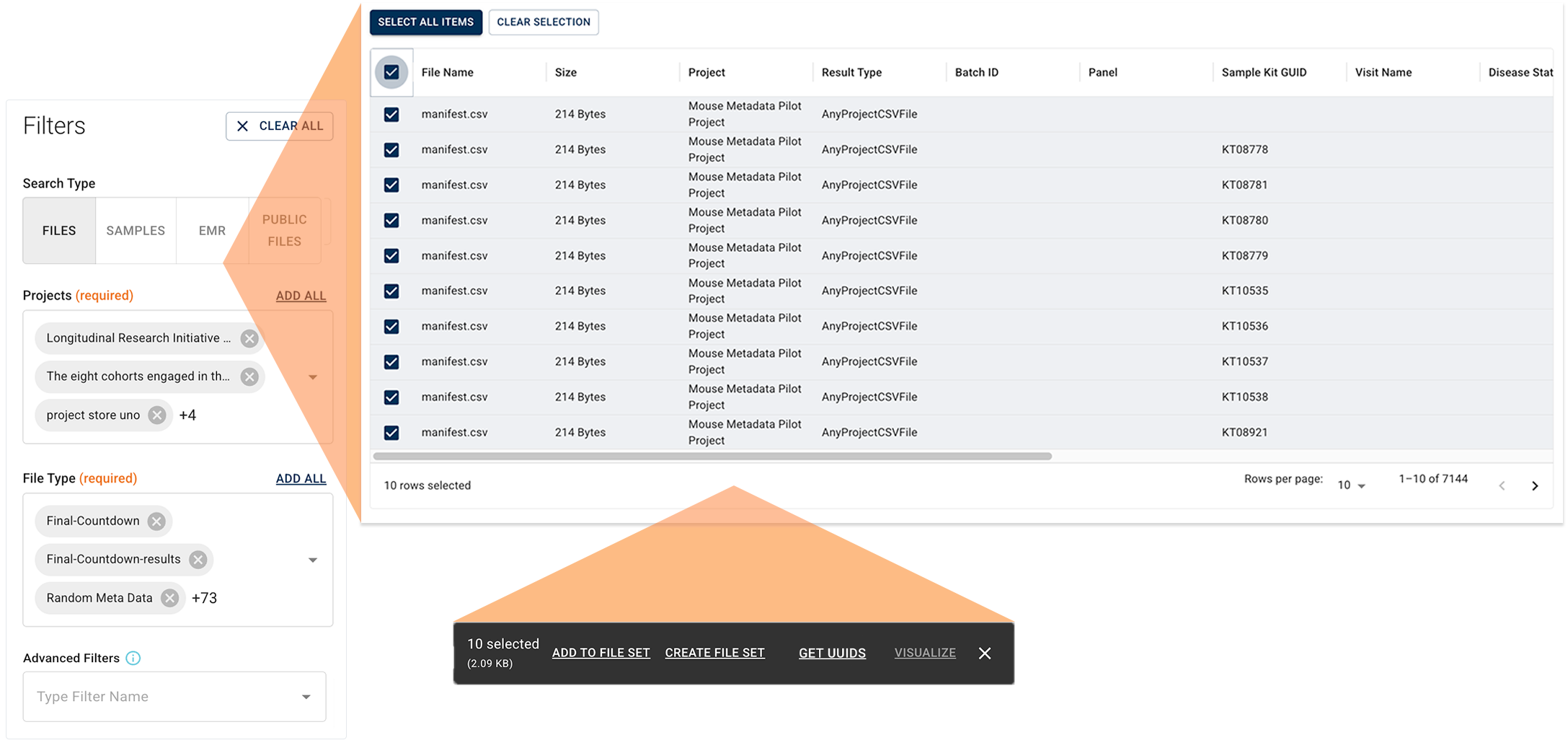
From the floating menu, click the link that represents what you want to do with your results.
NOTE
The floating menu for your result set is context specific and, as a result, some options might not be available. In the image below, for example, VISUALIZE is unavailable.
Filter operators | |
|---|---|
Operator | Description |
equals | A single, exact value. |
does not equal | Excludes one specific value. |
is one of | Returns records in which the selected filter matches any of the specified values. |
is none of | Excludes all selected values. |
contains term | Type a keyword or phrase (for example, |
is between | Returns a specified range of values (between |
is outside | Returns a value outside the specified range. |
Returns a value greater than the specified number. | |
Returns a value less than the specified number. | |
Returns a value greater than or equal to the specified number. | |
Returns a value greater less than or equal to the specified number. | |
 Related Resources