
Install an R Package from GitHub into a Pixi Environment (Tutorial)
Last updated 2026-04-10At a Glance
This tutorial shows you how to install an R package from GitHub into an existing Pixi IDE environment with the installGithubPackageToPixiEnv() SDK. This SDK call is the supported way to install R GitHub packages. With this SDK, you can add R packages specific to your project or lab. You can also try R package versions that aren’t part of your standard Pixi setup.
If you have questions or need help, contact Support
.
When to Use This Feature
Use this SDK method instead of Pixi Packs—saved Pixi environments—for R GitHub packages. Get the R tools you need without filing a ticket or waiting for someone to update your environment:
Install a project‑specific or lab‑specific R package from GitHub for use in a Pixi IDE.
Try a new or experimental package version that's not part of your standard Pixi environment.
Extend a Pixi environment with the extra packages you need for your analysis.
Signature and Parameters
The box below shows the installGithubPackageToPixiEnv() signature, and the method parameters follow.
installGithubPackageToPixiEnv()
 hp.installGithubPackageToPixiEnv(
   url = "https://github.com/REPO/PACKAGE_NAME",
   version = "TAG_OR_BRANCH"
)
Parameter | Data type | Required or optional | Description |
|
| Required | GitHub URL where package is stored. |
|
| Required | Git tag, branch, or commit to check out. |
NOTE
To create a reusable Pixi environment that others can choose when they create IDEs, see Save a Custom Pixi Environment (Tutorial).
Instructions
Open an IDE with a Pixi environment
Navigate to HISE, and use your organizational email address to sign in.
Either create a Pixi environment from scratch and open an IDE that uses the new environment, or choose a saved Pixi environment and create an IDE from it:
A. To create a new Pixi environment from scratch, follow Step 1 and Step 2 of Save a Custom Pixi Environment (Tutorial) .
B. Alternatively, to use a saved Pixi environment, start at the top navigation menu in HISE. Click RESEARCH, and choose IDEs from the drop‑down menu.On the IDEs page, click CREATE IDE INSTANCE.
Choose a Pixi environment that you or a colleague saved. Look for the Pixi package manager tag near the bottom of the card.
On the Create an IDE with this package page, click CREATE IDE.
On the IDE Settings page, enter the requested information (Name, Description, and HISE Billing Project), and click CREATE.
To open the IDE after it builds, click the arrow in the lower‑left corner of the card.
Activate your Pixi shell
A Pixi shell is a terminal session connected to your Pixi environment. In this step, you’ll install packages within that shell to add them to your Pixi environment.
In your IDE, open a terminal (File > New > Terminal, or use the terminal button in the UI).
To verify that the Pixi environment is active, do one of the following:
A. Check that your workspace prompt looks similar to this, where(piximinimalv2)is the name of your Pixi environment andnewpixienv2is the name of your IDE:(piximinimalv2) root@newpixienv2-0:~#
B. Run the following command:pixi info
In the environments block at the bottom of the output, the prefix location line should indicate that a Pixi environment is active.
C. Run the following commands:echo "$PIXIINSHELL"echo "$PIXIPROJECTMANIFEST"
If your Pixi environment is active, the first line returns1, a flag confirming that you’re inside a Pixi shell. The second line returns a path to your workspace configuration file.
Keep your Pixi shell open. You’ll use it to install your R package from GitHub.To activate the Pixi environment, run the following command:
pixi shell(Required only if your
pixi.tomlincludes more than one Pixi environment option) HISE prompts you to choose which environment to save when you callhp.save_custom_pixi_environment(). Enter the number of the environment you want to use.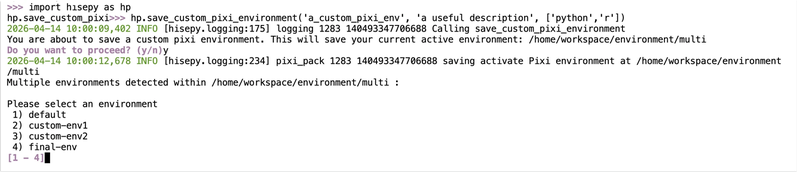
Install the R package from GitHub
In this step, you’ll use the R SDK function installGithubPackageToPixiEnv() to install an R package from a GitHub repository into your Pixi environment.
In your browser, sign in to GitHub .
Copy the full URL of the repo where your R package code is stored, such as
https://github.com/REPO/PACKAGE_NAME.Review any local source packages in your project and remove those you don’t want to include in this environment (for example,
.tar.gzfiles you used for testing).To open an R notebook in the same Pixi environment, use File > New Notebook > R.
To load the HISE R SDK, enter the following command in the first cell of your notebook:
library(hise)Run the SDK call in your R session, replacing the placeholders with the correct values:
hp.installGithubPackageToPixiEnv(
  url = "https://github.com/REPO/PACKAGE_NAME",
  versionTag = "TAG_OR_BRANCH"
)

# Replace https://github.com/REPO/PACKAGE_NAME with the GitHub URL you copied.
# Replace TAG_OR_BRANCH with the Git tag, branch, or commit you want to install (for example, "v1.0.1" or "stage")

/* Example:
hp.installGithubPackageToPixiEnv(
  url = "https://github.com/ahise/AverypackR",
  versionTag = "7.4.1"
) */
Wait for Pixi to finish the operation. If you receive no error message, the package has been added to your Pixi environment.
Confirm that the package works in your IDE
Confirm that you can load and use the R package.
In your IDE, open an R notebook in the same Pixi environment.
Load the package you just installed, replacing
PACKAGE_NAMEwith the correct R package name:library(PACKAGE_NAME)
Example:library(MOCHA)If no error message appears, the package is available in your Pixi environment.
If you receive an error message such asThere is no package called 'PACKAGE_NAME', contact Support .
Save your setup
Using the preceding steps installs the GitHub package only in your current Pixi IDE. If you want future IDEs to have the same configuration, you must save your setup.
Keep your IDE open, and follow the instructions in Save a Custom Pixi Environment (Tutorial) .
When prompted for the environment name and description, mention the GitHub R package you just installed so that your future self and your team members know it’s included.
 Related Resources
Save a Custom Pixi Environment (Tutorial)
Use HISE SDK Methods and Get Help in the IDE